Pujo season does strange things to a shop owner’s phone.
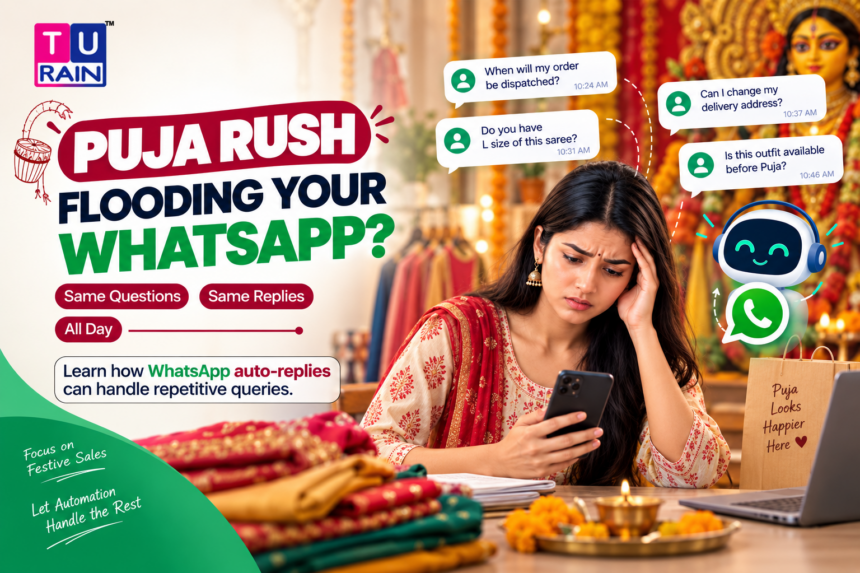
One minute it’s quiet. The next, forty messages land in twenty minutes, all asking some version of the same three questions. What’s the price? Is it in stock? Will it reach before Ashtami?
You can’t hire three extra staff just for October. But you can set your WhatsApp up so it stops feeling like a losing battle. Here’s what actually works, what doesn’t, and where the line between “automatic” and “just faster” really sits — because a lot of guides blur that line, and it costs shop owners real time when they realise mid-Puja-rush that a feature doesn’t do what they assumed.
What WhatsApp Business Can (and Can’t) Actually Automate
Let’s be precise here, because precision matters more than enthusiasm.
The free WhatsApp Business App gives you two genuinely automatic tools: a Greeting Message and an Away Message. Both fire without you lifting a finger. Everything else — including the much-loved Quick Replies — is a manual shortcut, not automation. It saves you typing, not deciding.
If you want something that reads “do you have red sarees in stock” and replies with actual stock info on its own, that needs the WhatsApp Business API and a chatbot layer on top of it. The free app alone won’t do that. Worth knowing before you build expectations around it.
With that cleared up, here’s how to actually set this up before the rush hits.
Step 1: Set Your Business Hours First
Sounds basic. Skip it, though, and your Away Message won’t fire at the right time.
Go to Settings > Business Tools > Profile > Hours, and set when you’re actually reachable. During Puja week, be realistic — if you’re at the pandal from 6 PM onward, your hours should reflect that, not your usual shop timing.
Step 2: Turn On the Greeting Message
This is the one that catches first-time messages, or chats that have gone quiet for a while (WhatsApp typically triggers it after roughly two weeks of inactivity on a chat).
Here’s how:
- Open WhatsApp Business, tap the three dots, go to Settings
- Tap Business Tools > Greeting Message
- Toggle it ON
- Write your message — keep it to two or three lines
- Choose recipients: everyone, or just new contacts
- Save
For Puja season, something like this works well:
“Namaskar! Thanks for messaging [Shop Name]. We’re currently handling high order volume for the Puja season — please share what you’re looking for (item, size, colour) and we’ll get back within [X] hours.”
That last part matters more than it looks. Setting a time expectation upfront quietly reduces the follow-up “hello? any update?” messages that eat into your day.
Step 3: Turn On the Away Message
This one covers you outside business hours — evenings, pandal-hopping, the one day you finally take off.
- Go to Business Tools > Away Message
- Toggle ON
- Write your message
- Set the schedule — “Outside of Business Hours” is the sensible choice here, tied to the hours you set in Step 1
- Choose recipients and save
A decent Away Message during Puja:
“Thanks for your message! Our shop is closed right now. We’ll respond by [time] tomorrow. For urgent delivery queries, please mention your order number and we’ll prioritise it.”
Step 4: Build a Quick Replies Library for Your Top FAQs
This is where most of your Puja-season time gets saved, even though it isn’t technically “automatic.”
Quick Replies let you save a canned response and fire it off by typing “/” followed by a shortcut — no retyping the same delivery timeline for the fortieth time that day.
Set these up under Business Tools > Quick Replies, and build one for each recurring question:
- Price queries — “/price” → a message listing your current rates or a note to share the catalogue
- Delivery timelines — “/delivery” → expected delivery windows, especially important with courier delays common during the festive rush
- Stock availability — “/stock” → how to confirm stock (even if it just says “share the item name, we’ll confirm within the hour”)
- Ongoing offers — “/offer” → current discounts or bundle deals running for Puja
A shortcut takes two seconds to send. Typing the same paragraph forty times does not.
Step 5: Know Where the Free App Stops Being Enough
If your shop gets genuinely high volume — hundreds of daily messages, multiple staff replying — the free app starts creaking. That’s the point where the WhatsApp Business API, paired with a third-party automation tool, becomes worth considering.
With the API, keyword-triggered auto-replies become possible. A message containing “price” or “stock” can pull an actual automatic response, not just a shortcut you send manually. Some tools go further with basic chatbot flows — a customer picks from options, the system responds accordingly.
One caveat worth knowing: Meta has restricted general-purpose AI chatbots on WhatsApp since early 2026. Task-specific bots — order tracking, support queries, catalogue browsing — are allowed. A freeform “chat with our AI” experience is not, at least not without going through Meta’s approval process. For a local shop handling price and delivery FAQs, this restriction rarely gets in the way. It matters more for larger businesses attempting broader conversational AI.
For most local shops, though, the free app’s Greeting Message, Away Message, and a well-built Quick Replies list cover 80% of what Puja season throws at you. The API route makes sense once volume genuinely outpaces what one or two people can handle manually, even with shortcuts.
Common Mistakes to Avoid
Writing one Away Message and forgetting it exists. Update it for Puja week specifically. A generic “we’ll respond soon” doesn’t tell anyone whether “soon” means an hour or three days.
Skipping Business Hours setup. Without it, your Away Message either never fires or fires when you’re actually available — both defeat the purpose.
Overloading Quick Replies with vague shortcuts. “/info” that dumps five paragraphs helps nobody. Keep each shortcut tied to one specific question, answered in three or four lines.
Forgetting to update stock-related replies daily during peak rush. An automatic “yes, in stock” reply sent to someone the day after you sold out creates more frustration than silence would have.
Want help setting up a proper WhatsApp automation flow for your shop before the Puja rush hits full swing? Reach out to Turain for a quick, no-fuss setup consultation.
Disclaimer
Platform Features & API Limits: This guide is intended for informational purposes and reflects the capabilities of the free WhatsApp Business App and the WhatsApp Business Platform (API) as of mid-2026. Meta frequently updates its feature sets, API integration rules, and chatbot usage policies. The specific steps for configuring Greeting Messages, Away Messages, and Quick Replies may vary slightly depending on your device (iOS vs. Android) and app version. Always ensure your automated messaging complies with WhatsApp’s Business Messaging Policy.
Frequently Asked Questions
Can I set different Away Messages for different days of Durga Puja?
Not natively within the free WhatsApp Business app. The app allows you to set one global Away Message that triggers outside of your defined business hours. If you want a specific message for Saptami and a different one for Dashami, you will need to manually edit the message text each morning.
If a customer messages me at 2 AM, will the Greeting Message and the Away Message both send?
No, WhatsApp is designed to prevent this kind of spam. If a new customer messages you outside of your business hours, only the Away Message will trigger.
How many Quick Replies can I save in the free WhatsApp Business app?
Currently, the free WhatsApp Business app allows you to save up to 50 unique Quick Replies. This is generally more than enough to cover your top FAQs regarding price, delivery, shop location, UPI payment numbers, and return policies.
Can I use WhatsApp Web to send Quick Replies?
Yes. If you have your WhatsApp Business account linked to a desktop via WhatsApp Web, you can simply type "/" in the chat bar, and your full list of saved Quick Replies will pop up, making it incredibly fast for a staff member to handle queries from a computer during peak rush.
Can WhatsApp auto-reply actually answer different customer questions differently?
Not with the free app. Greeting and Away Messages send one fixed message regardless of what the customer asked. To have different questions trigger different automatic answers, you need the WhatsApp Business API with a keyword-based automation tool layered on top.
Are Quick Replies automatic?
No. They're saved shortcuts you or your staff trigger manually by typing "/" and selecting one. They speed up replies significantly, but a person still has to send them.
Is there a cost to setting this up?
The Greeting Message, Away Message, and Quick Replies are all free features inside the WhatsApp Business App. Costs only come in if you move to the WhatsApp Business API for advanced, keyword-triggered automation.
Will this replace the need for a staff member entirely during Puja?
Not entirely — someone still needs to handle orders, confirm payments, and manage anything the automated messages can't cover. What it does is cut down the repetitive typing, so one person can handle a volume that would otherwise need two or three.
Official Reference Links
- WhatsApp Help Center – How to use Greeting Messages: faq.whatsapp.com/greeting-messages
- WhatsApp Help Center – How to use Away Messages: faq.whatsapp.com/away-messages
- WhatsApp Help Center – How to use Quick Replies: faq.whatsapp.com/quick-replies